01
Motion Transfer
Map dance choreography, walking loops, athletic moves, and full-body timing from a reference video onto a new character image while keeping the subject recognizable.
0:15
Reference motion to character video · Character image · Reference video · Gesture transfer · Kling 3.0
Sample preview · no generation or credit charge
Get inspired
Feature modes
Four motion-control modes for character video: transfer body movement, guide hands, carry facial performance, and add cinematic camera energy from a reference clip.
Map dance choreography, walking loops, athletic moves, and full-body timing from a reference video onto a new character image while keeping the subject recognizable.
Use a real motion clip to guide pointing, waving, arm movement, head turns, posture shifts, and creator-style actions that prompts alone often miss.
Carry smiles, attitude, eye direction, head rhythm, and performance energy into the generated clip so the result feels directed instead of random.
Pair motion transfer with controlled pacing, camera feel, lighting consistency, and 720p or 1080p output settings for polished character video.
Workflow
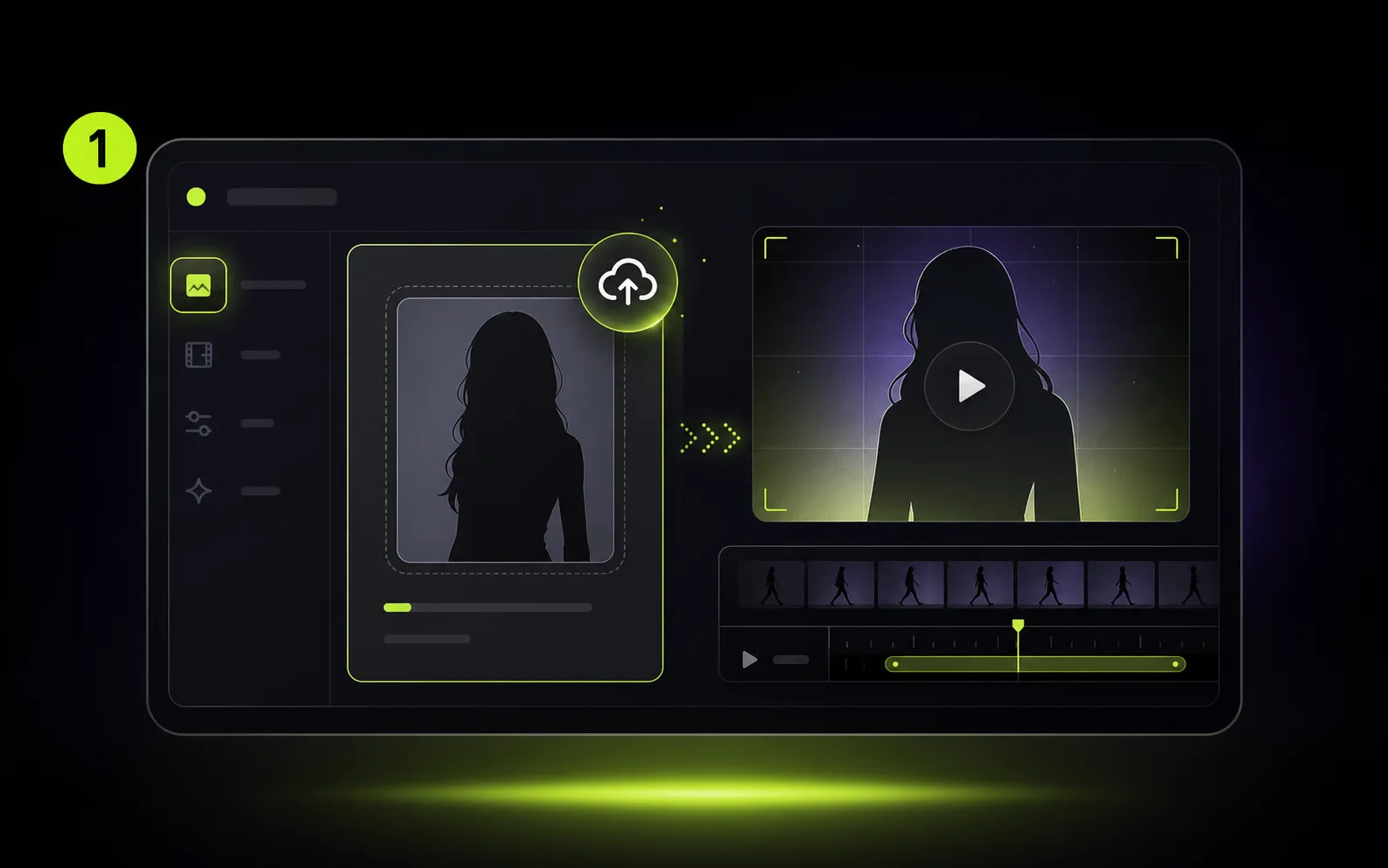
Start with a clear portrait, full-body image, avatar, product presenter, or stylized character that should perform the action.
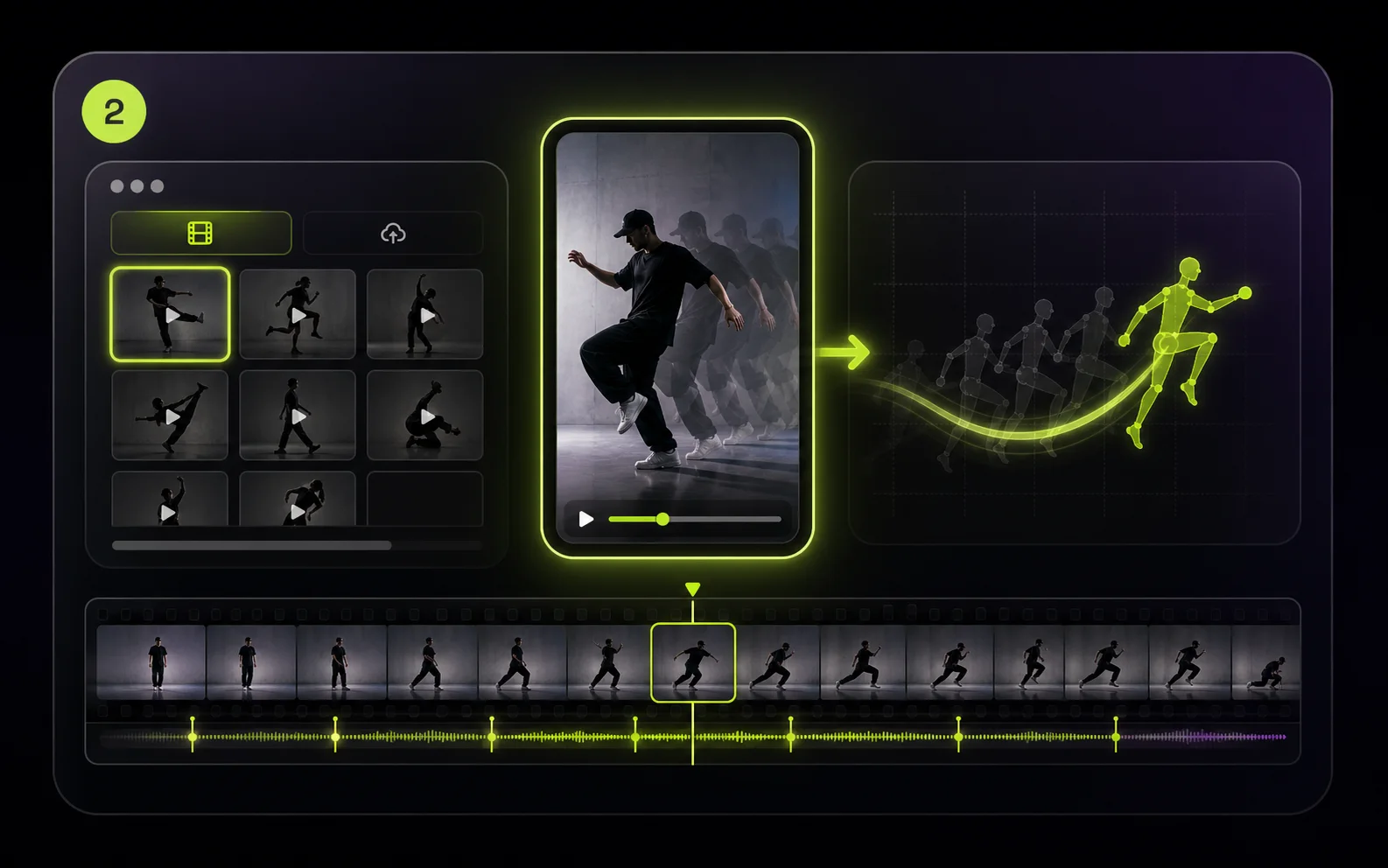
Pick a reference motion from the library or upload an MP4/MOV clip with the gesture, dance, walk cycle, or camera rhythm you want to reuse.
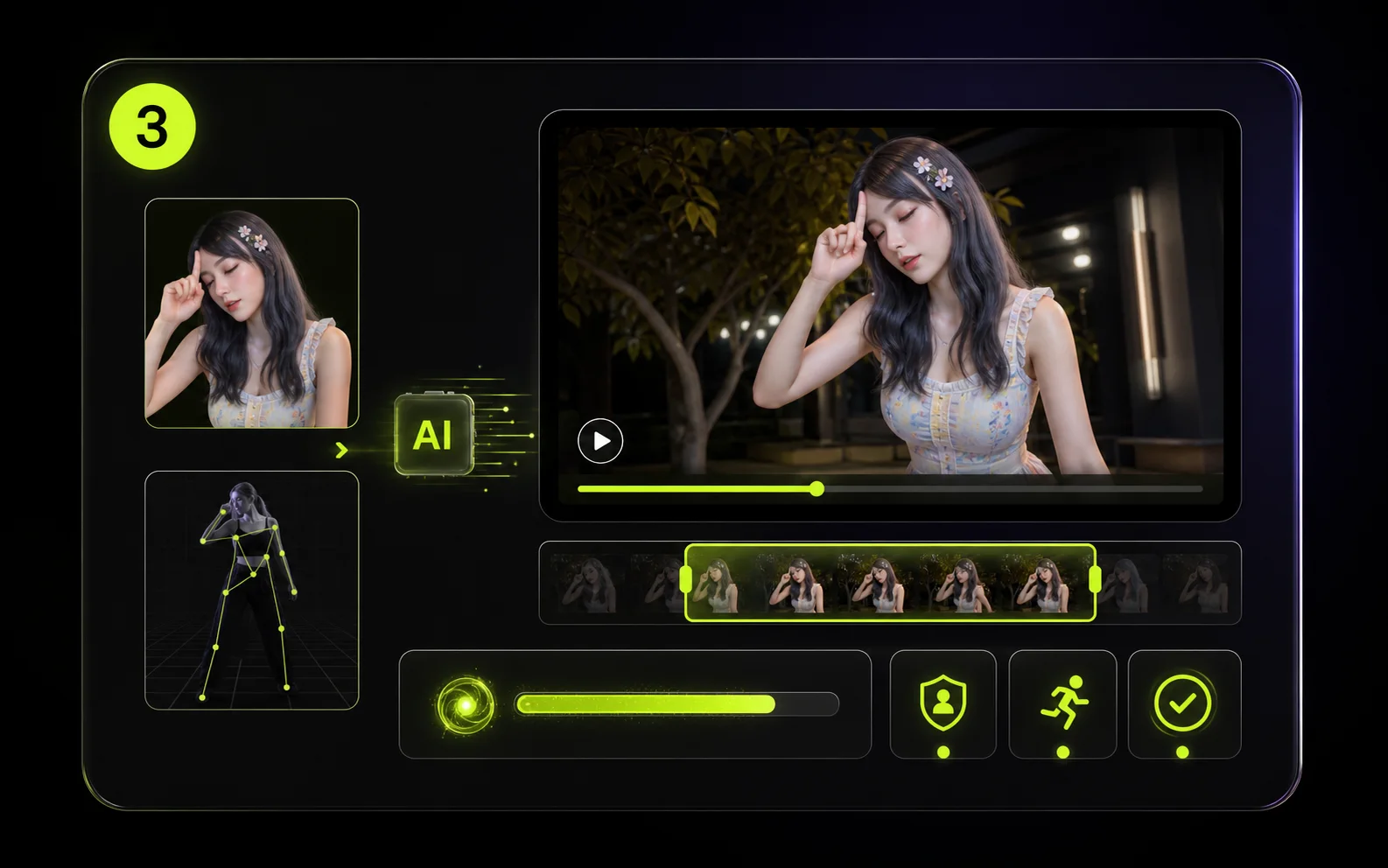
Generate a short preview to check identity stability, motion accuracy, and pacing before moving to longer or higher-resolution output.
Use cases
Use one reference clip as reusable direction for creator content, campaigns, explainers, avatar channels, and early production tests.
Transfer dance moves, gestures, and talking-head energy to a character image so you can publish more Shorts, Reels, and TikToks without filming every variation.
Use actor footage or rough phone videos as motion direction for character tests, pitch scenes, and storyboards before spending time on manual animation or a studio shoot.
Turn static product shots, mascots, or spokesperson images into motion-led ads with consistent gestures, posture, and campaign energy across multiple creative versions.
Create instructor-style clips where hand movement, body rhythm, and presenter timing match the lesson, tutorial, onboarding flow, or internal training script.
Reuse a trending move, pose sequence, or gesture across different characters and brand assets while keeping the final clip aligned with your own visual style.
Animate portraits, stylized characters, or personal avatars with a real reference clip when you want a gift video, profile asset, or experimental character performance.
Related workflows
Combine reference motion with image-to-video, prompt-based generation, and one-click effects depending on how much control each clip needs.
Guide style, identity, composition, or motion with reference media when the shot needs more creative control.
Open toolCreate a clip from a text prompt when you do not have a source image or reference motion yet.
Open toolUse ready-made effects such as AI Hug, AI Kiss, AI Dance, AI Baby, and AI Muscle for quick variations.
Open toolCompare credits, subscriptions, and pay-as-you-go packs before rendering longer motion-control clips.
Open toolCreator notes
“Motion Control AI lets me test avatar performances without filming every gesture again.”

“The motion demos give our team fast starting points for social ad variations.”
“Uploading a custom movement clip makes character shots much easier to direct.”
FAQ
Motion Control AI uses a reference video to guide how a character moves. You upload a character image, select or upload a motion clip, and generate a new video that follows the source movement.
You need one character image and one motion reference. Images can be PNG, JPG, JPEG, WEBP, or GIF up to 10 MB. Uploaded motion videos can be MP4 or MOV up to 100 MB, or you can pick a reference from the built-in library.
The workflow is designed to preserve the image identity, outfit, and style while transferring movement from the reference clip. Clear source images and readable motion usually give better results.
Kling Motion Control needs a readable reference-video duration. Billing uses whole seconds with a 3-second minimum, and references longer than 30 seconds are rejected.
Credits are calculated from the reference duration and output resolution: 720p costs 10 credits per second and 1080p costs 15 credits per second, rounded up to whole seconds.
The Motion Control model supports 720p and 1080p output, with 9:16, 16:9, and 1:1 aspect ratios.
Image orientation keeps the final framing closer to the character image. Video orientation follows the reference video framing and is the default for most motion clips. Image orientation is limited to clips up to 10 seconds.
Motion Control can keep the original sound from the reference video. Use it when timing matters, and turn it off when you plan to add separate music or voiceover.
Kling 3.0 Motion Control is credit-based. The Create button shows the required credits before submission; the short 480p image-to-video preview is also credit-based.
Watermark is enabled by default. Paid users can turn it off for future videos and can remove the watermark from eligible completed tasks.
Ready to direct the movement?
Upload your character, choose a built-in motion preset or your own video, and render a controlled character clip in the browser.